Vexa
Vexa

Download VPN for Android
Install the VPN app and activate access through your personal account.
App screenshots
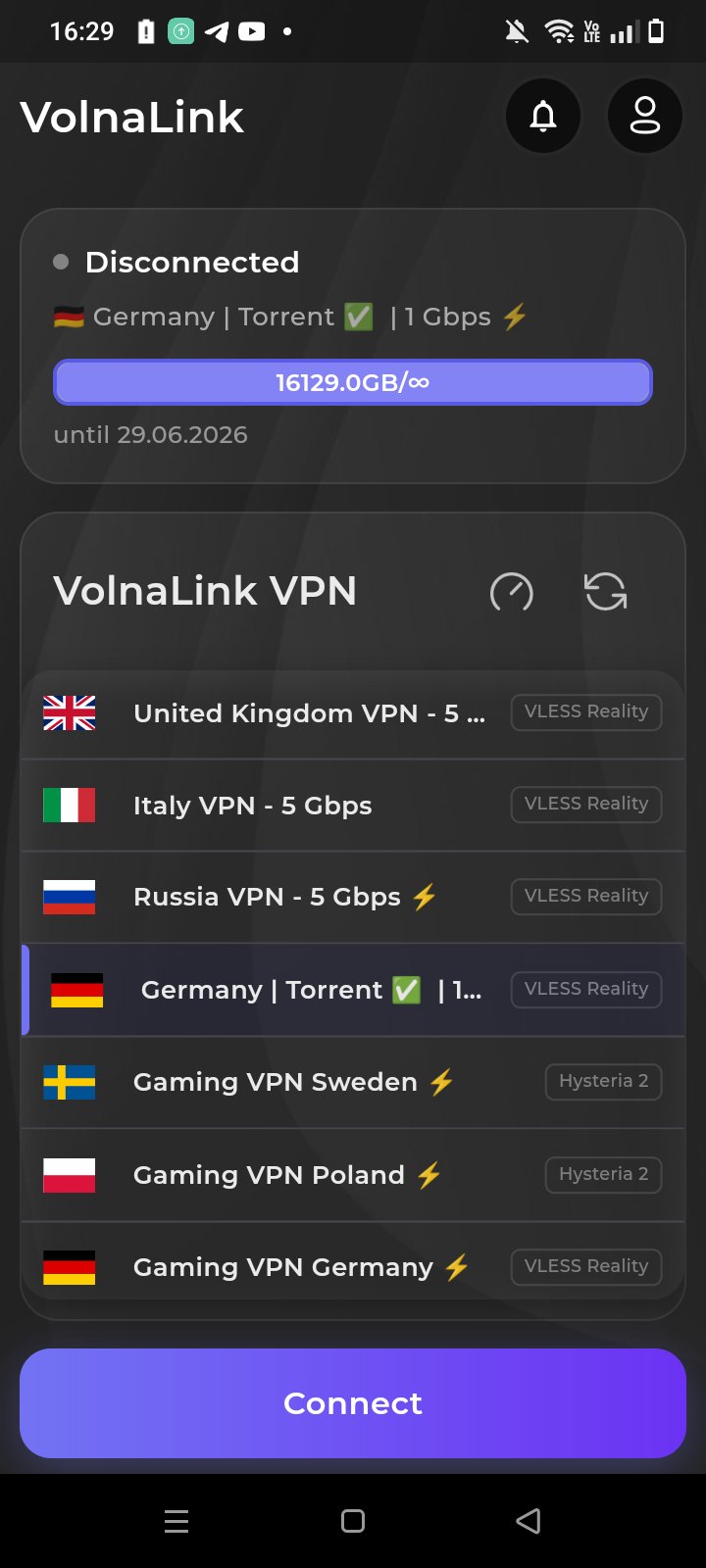
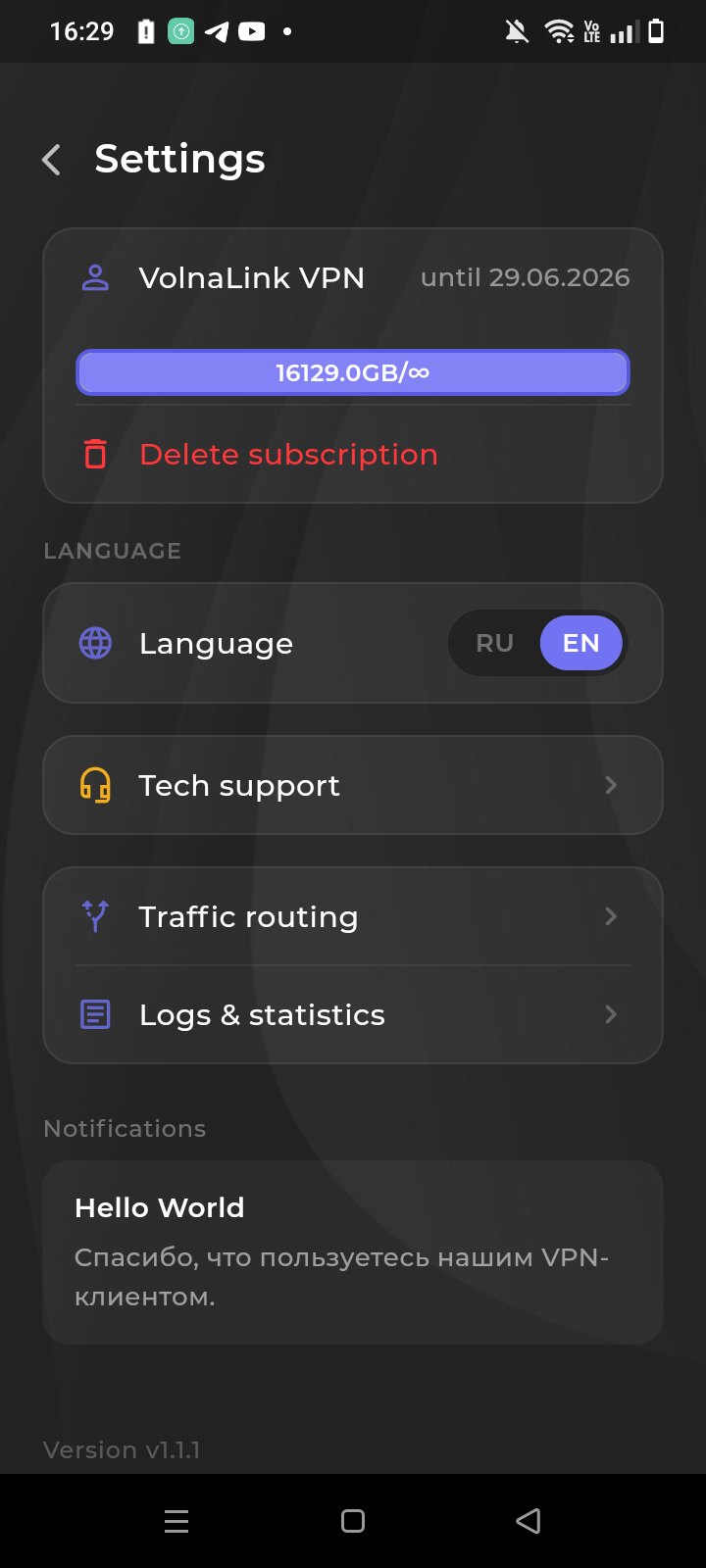
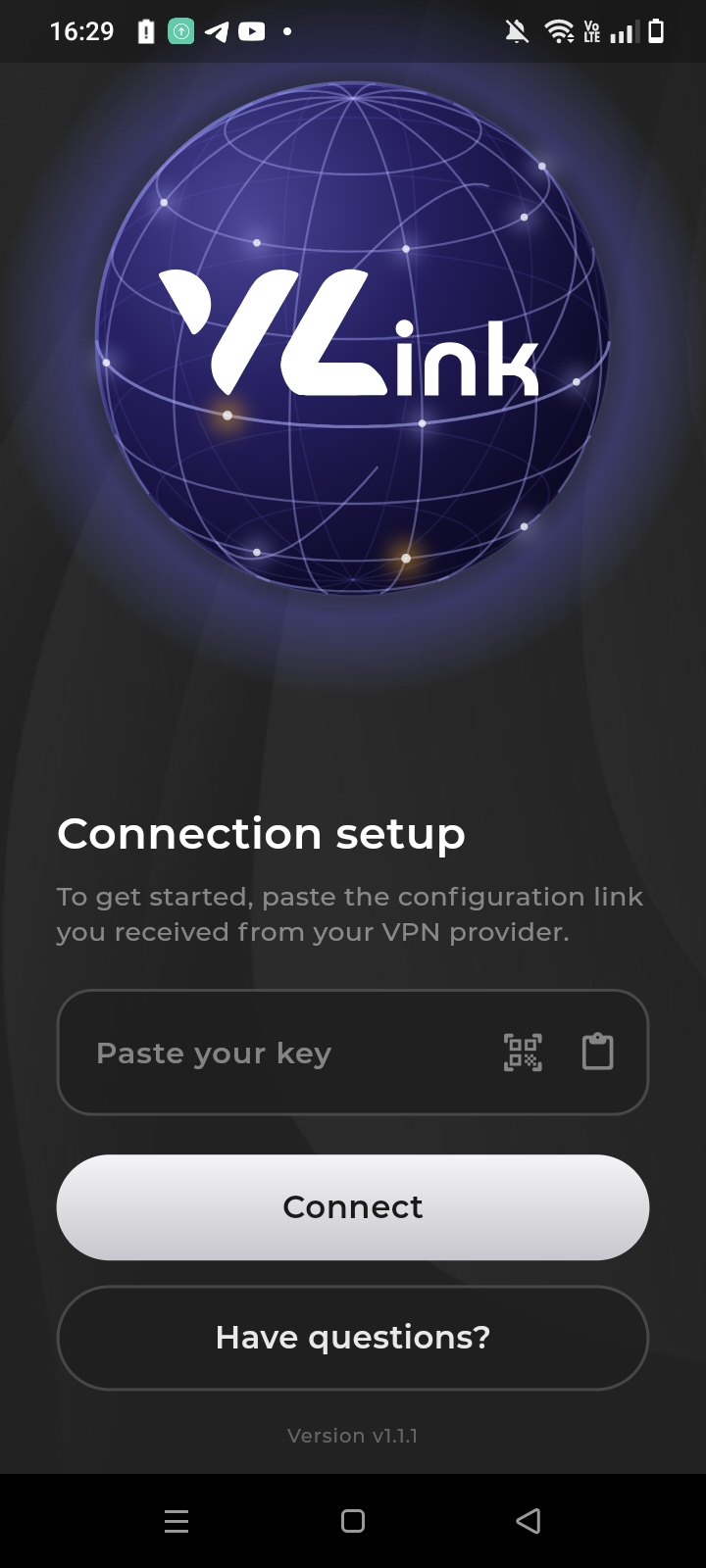
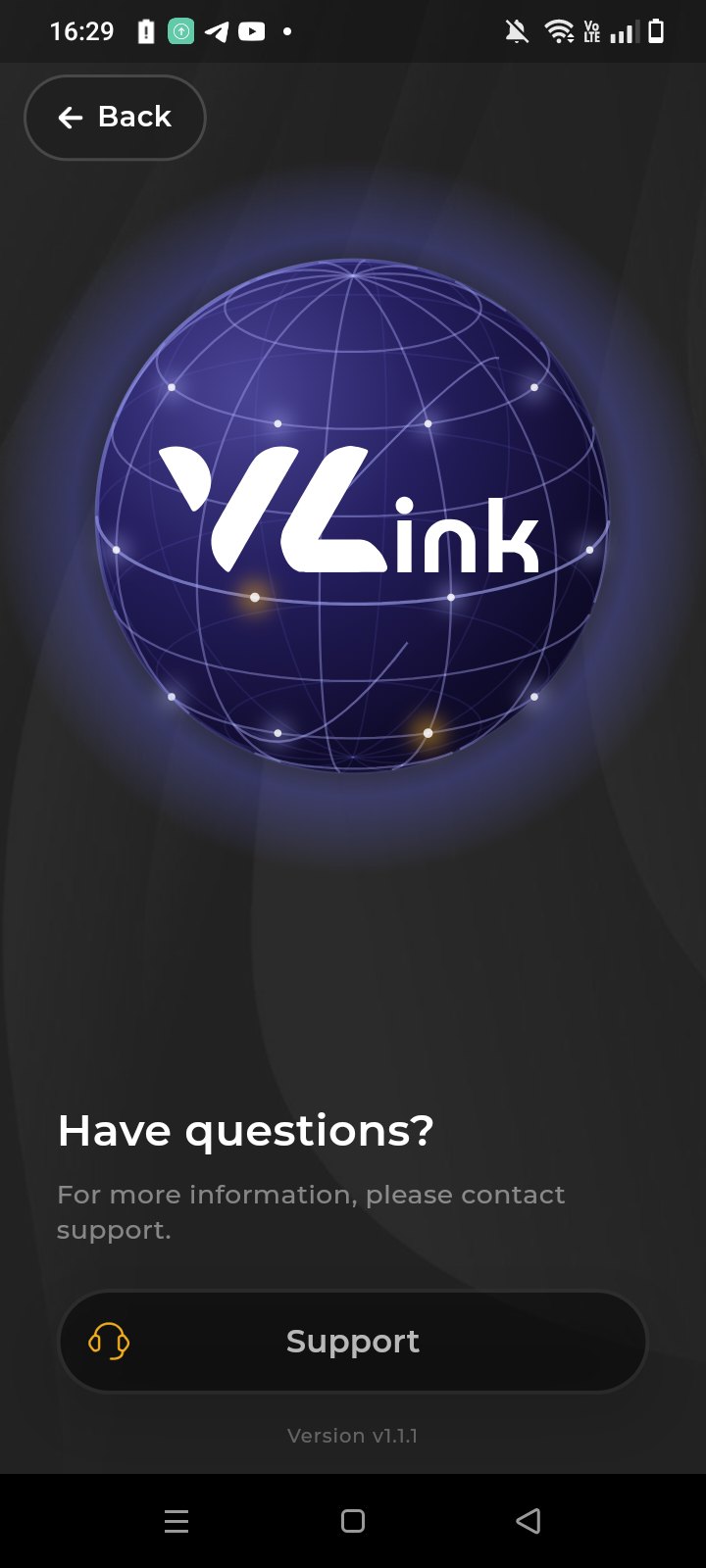
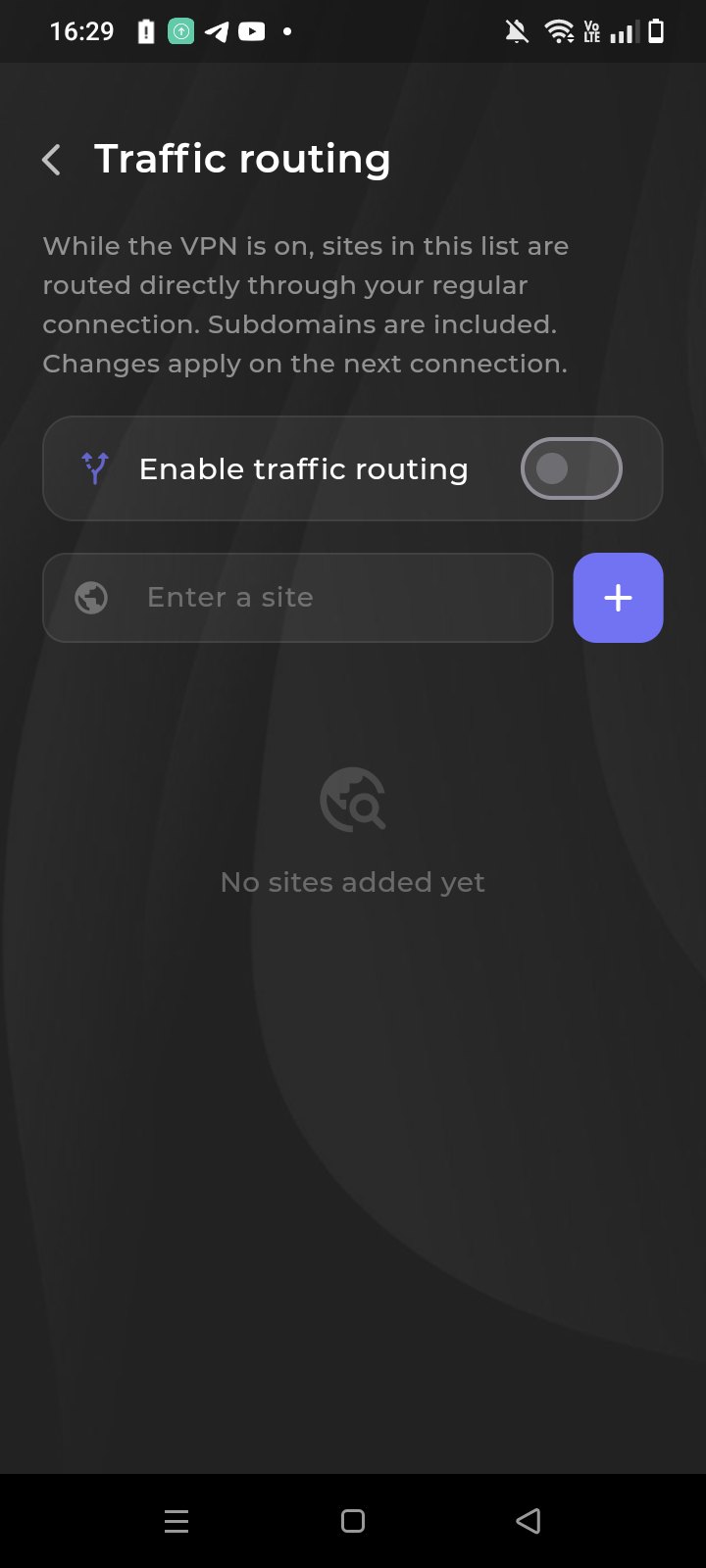
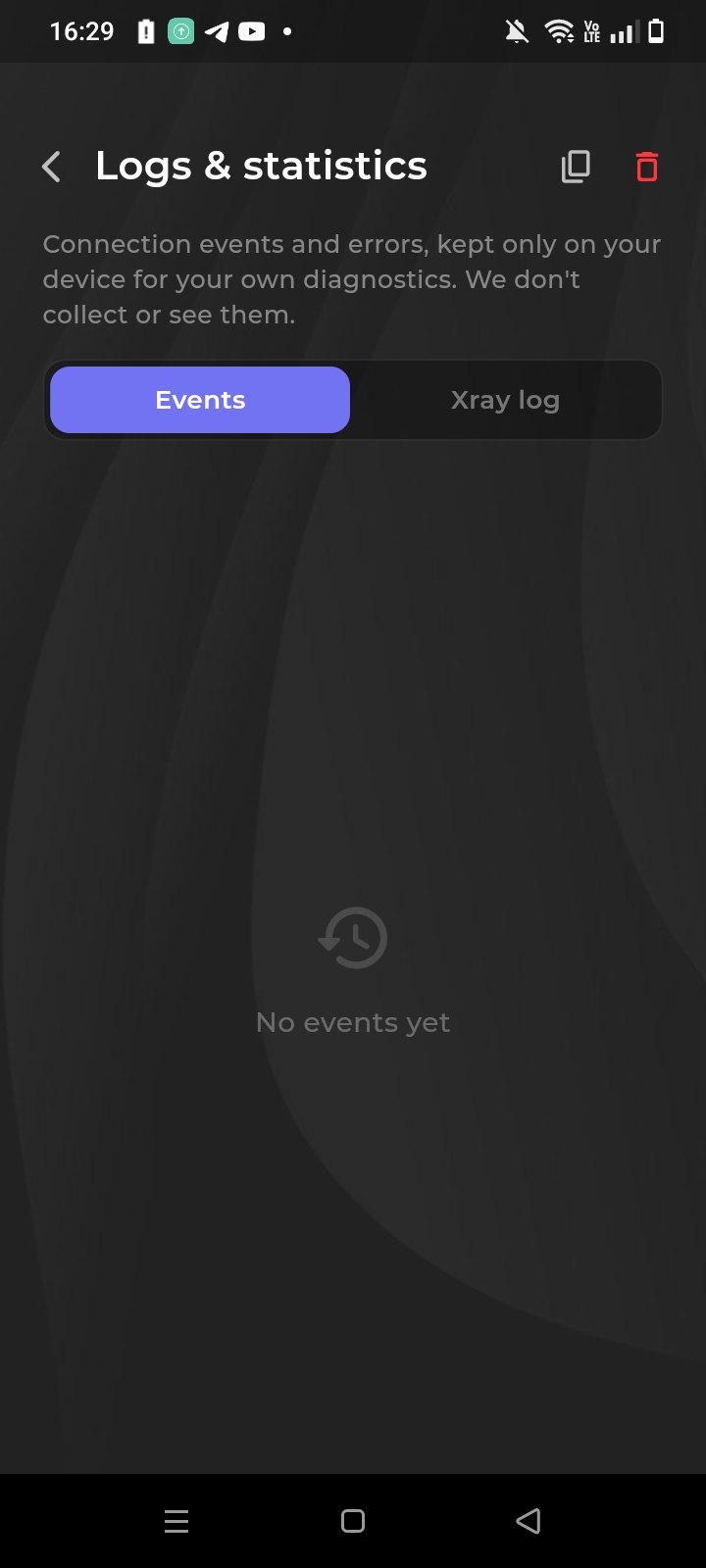
About the app
Vexa VPN works on Android 8 and above. Install it from Google Play or Huawei AppGallery, or download the APK, sign in, and choose a location.
Specifications
How to get started
Create an account
Sign up in your personal account. The first 8 hours are free, no bank card required.
Get and install the app
Install the app from Google Play or Huawei AppGallery, or download the APK with the button above. A store and an APK are different ways to install.
Activate access
On first launch paste your subscription key into the key field and press Connect. Android will show a system prompt to create a VPN connection — confirm it.
Choose a country and connect
Pick a country in the server list and press Connect.
Common issues
- Open a couple of sites without the VPN to confirm your internet works on its own.
- Make sure the date and time on your device are set automatically.
- Turn off any other VPN app or an old system VPN profile.
- Update Vexa VPN to the latest version from the same source.
- Pick another available location and connect again.
Installing the APK requires Android 8 or newer and permission to install from the chosen source — your browser or file manager.
Frequently asked questions
Is the app free?+
The first 8 hours are free with no card required. After that the app works on a subscription that covers every country and platform.
Which protocols are supported?+
VLESS Reality, Trojan and Hysteria 2 — the app picks the best one for a fast, stable connection.
Can I use one account on several devices?+
One subscription lets you use the VPN on supported platforms and connect up to three devices at the same time. To connect a new device, disconnect an unneeded active connection or use the access management option provided in your personal account.
How do I install the app?+
Register in your personal cabinet, download the app for your platform, add a subscription and connect. Four simple steps.