Vexa
Vexa

Download VPN for Android TV
Install the VPN app and activate access through your personal account.
App screenshots
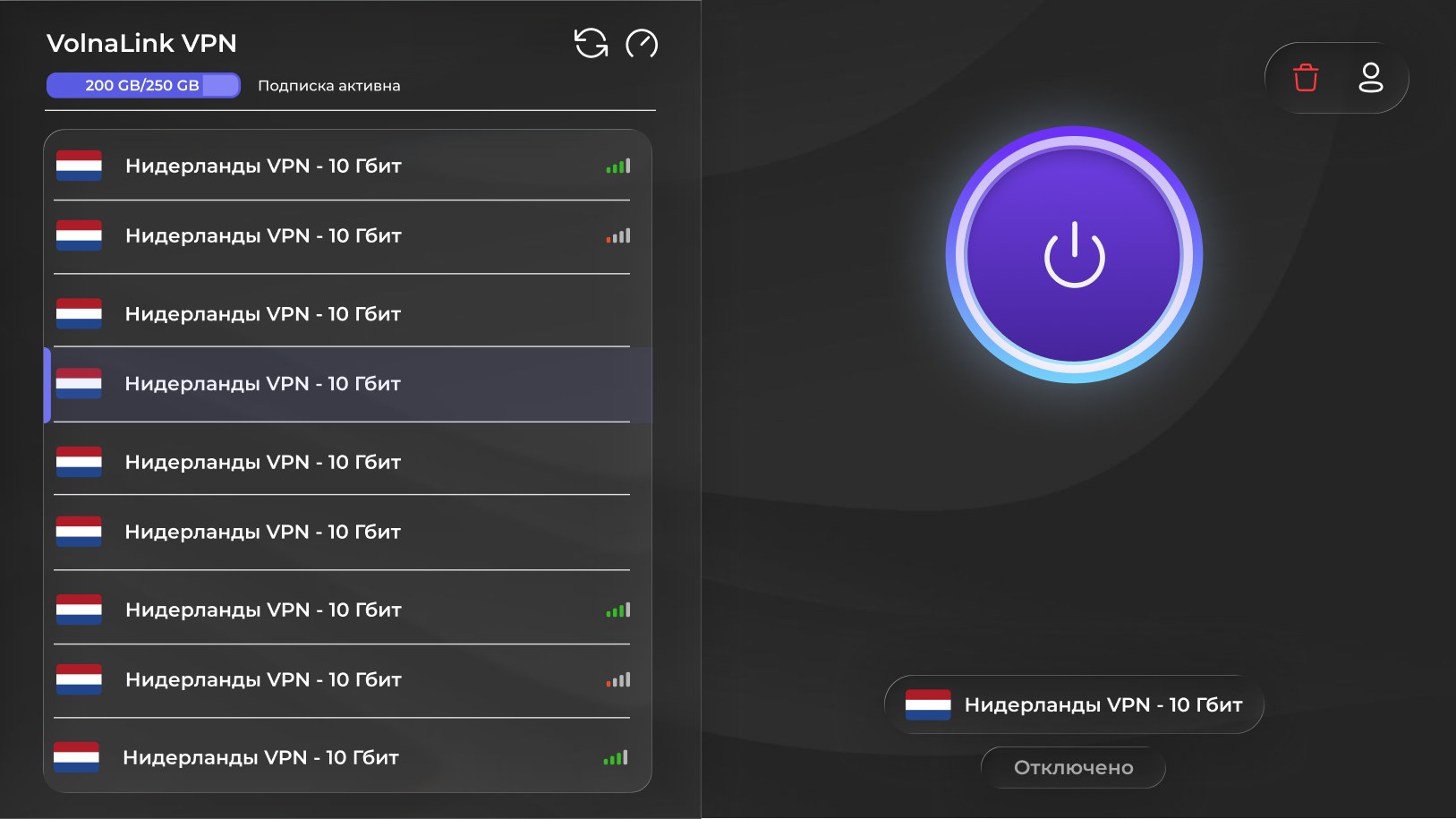
About the app
The Vexa app for Android TV and Google TV brings the VPN straight to your TV. Easy remote navigation, fast servers and stable speed for.
Specifications
How to get started
Create an account
Sign up in your personal account. The first 8 hours are free, no bank card required.
Get and install the app
Install the app on your TV following the Android TV and Google TV installation guide.
Activate access
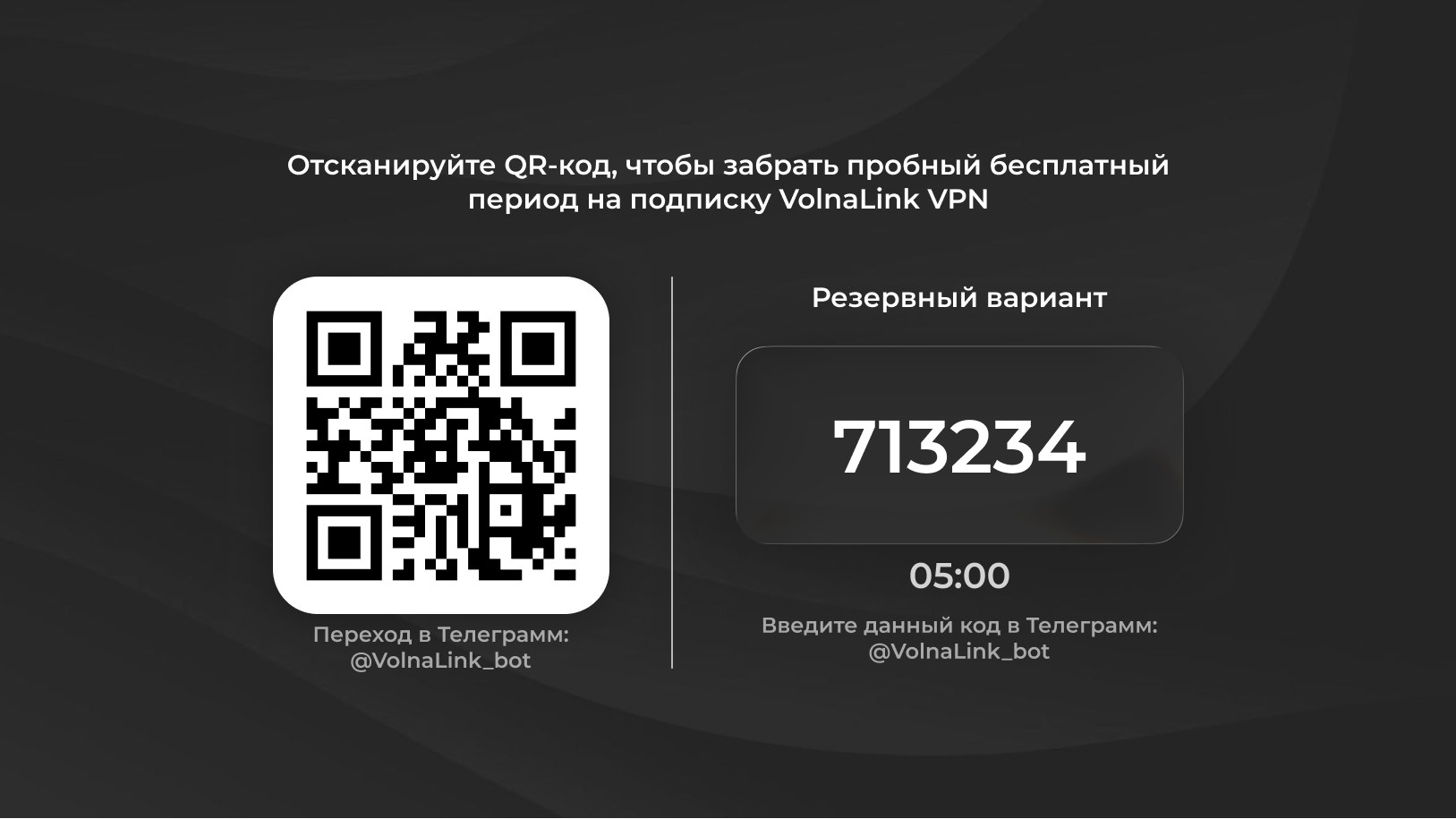
Sign in using the method the app shows on the TV screen. Control the app with your remote.
Choose a country and connect
Pick a country in the server list and switch the connection on with the remote.
Common issues
- Open a couple of sites without the VPN to confirm your internet works on its own.
- Make sure the date and time on your device are set automatically.
- Turn off any other VPN app or an old system VPN profile.
- Update Vexa VPN to the latest version from the same source.
- Pick another available location and connect again.
Frequently asked questions
Is the app free?+
The first 8 hours are free with no card required. After that the app works on a subscription that covers every country and platform.
Which protocols are supported?+
VLESS Reality, Trojan and Hysteria 2 — the app picks the best one for a fast, stable connection.
Can I use one account on several devices?+
One subscription lets you use the VPN on supported platforms and connect up to three devices at the same time. To connect a new device, disconnect an unneeded active connection or use the access management option provided in your personal account.
How do I install the app?+
Register in your personal cabinet, download the app for your platform, add a subscription and connect. Four simple steps.